
How to Add a Checkout Note to Help Prevent Non-Latin Characters in Shopify Shipping Addresses
If you ship internationally on Shopify, adding a checkout note is one of the simplest things you can do to try to reduce address problems caused by non-Latin characters.
It is not a complete fix, but it can help by putting the warning in front of the customer before the order is placed. In this post, I'll walk through how to add that note, where to find the right text field, and where this approach still falls short.
Why non-Latin characters cause shipping problems
Many international shipping carriers rely on systems that only support Latin or Roman characters. When shipping addresses include characters from other writing systems such as Greek, Arabic, Cyrillic, Chinese, Japanese, and others, those systems may fail.
Common issues include:
- Carrier address rejections
- Incorrect routing or misread destinations
- Shipping label generation failures
- Delayed or returned shipments
For merchants, these issues often lead to manual intervention, reshipping costs, refunds, and increased customer support. A clear warning at checkout can help reduce these problems before an order is placed.
The free solution: adding a note on the checkout page
Shopify allows merchants to edit checkout text using the default theme content editor. This makes it possible to display a message reminding customers to use only Latin characters when entering their shipping address, without editing any code.
Step 1: Open the theme content editor
From your Shopify admin:
- Go to Online Store and then Themes
- Find the theme you are currently using
- Click the three dots next to the theme
- Select Edit default theme content
This opens Shopify's theme content editor, which controls text across your storefront and checkout experience.
Step 2: Navigate to the checkout text
Inside the Theme content editor, click Checkout and system in the top navigation bar.
This section contains all text used during the checkout flow.
Step 3: Find the shipping address related text
To locate the correct field:
- Use Ctrl + F on Windows, or Cmd + F on Mac
- In the search box that appears, type: shipping address, then press enter
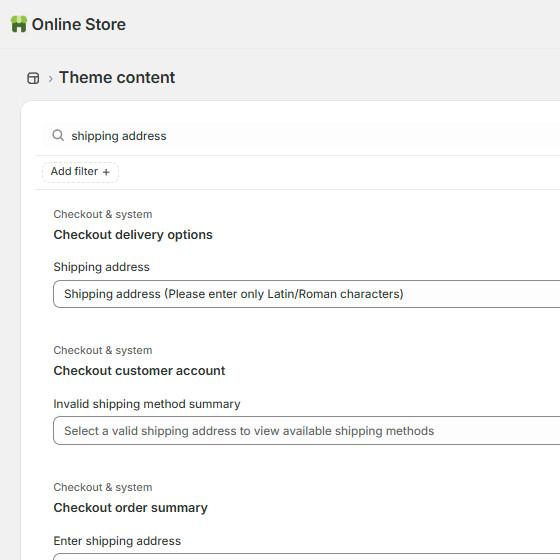
This will bring up a number of input boxes that deal with 'shipping address'.
You're looking for the input box labeled 'Shipping address' under 'Checkout delivery options'. This should be the first one on the list below the search box.
Note: The following is not always the case, but you may need to scroll all the way down the page using the right, vertical scroll bar to load all pertinent fields, otherwise some checkout text will not appear if you search too early.
Step 4: Add your shipping address note
In the 'Shipping address' text box that comes up (under 'Checkout delivery options'), enter 'Shipping address' plus your note, for example: 'Shipping address (Please enter only Latin/Roman characters)'.
You can adjust the wording to match your brand tone, but clarity is essential.
Click Save when finished.
Step 5: Test the checkout
To verify that the message appears correctly:
- Navigate to your site
- Add a product to the cart and go to checkout
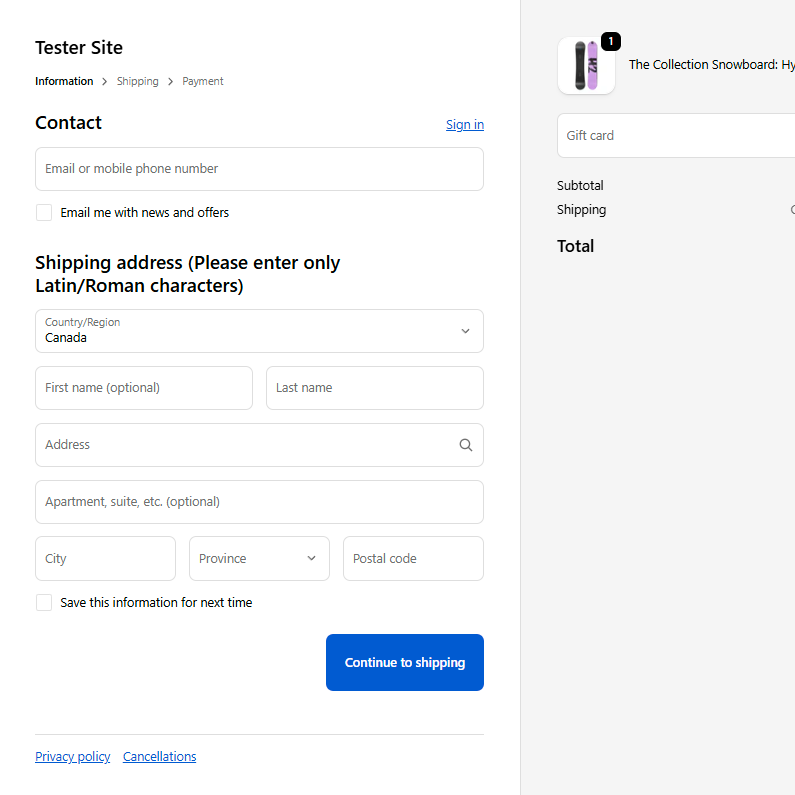
- Check that your new message now appears above the shipping address fields
Limitations of the free solution
While this checkout warning is helpful, it has important limitations:
- Customers can ignore the message
- Shopify does not block invalid characters
- Express checkout options such as Shop Pay, Apple Pay, and Google Pay may bypass this text entirely
So in the end, this approach depends on the customer noticing the note and following it.
If you want stronger protection
If you want something stronger than a warning message, then you need a solution that actually checks the address fields and stops checkout when invalid characters are entered.
LatinLock is a Shopify app that prevents non-Latin or non-Roman characters from being entered into shipping address fields at checkout. Instead of just showing a warning:
- Customers are prompted to correct their address immediately
- Checkout cannot continue until the address is valid
- Invalid characters never reach your fulfillment or carrier systems
Some merchants use both approaches together. The checkout note sets the expectation, and LatinLock handles the enforcement.
Final thoughts
Adding a checkout note is a simple and free way to guide customers toward entering valid shipping addresses. However, if you ship internationally and want to fully prevent address-related fulfillment issues, enforcement is far more effective than warnings alone.
By combining clear checkout messaging with a solution like LatinLock, merchants can reduce failed shipments, lower support costs, and protect their international orders before problems occur.
To see the app in action, you can watch this LatinLock demo video on YouTube.